
|4.14Mins Read
[Complete Guide] Remote Desktop Windows 11 Home
- Authors

- Name
- Geeks Kai
- @KaiGeeks
Is it possible to utilize Windows 11 Home remote desktop? No, the built-in Remote Desktop feature cannot be used as a host on Windows 11 Home. This functionality is only available on Windows 11 Pro and Enterprise editions, allowing other devices to connect remotely to your computer. However, Windows 11 Home does allow you to use Remote Desktop as a client, allowing you to connect to other devices that have Remote Desktop enabled. Just keep in mind that you cannot host a session on your own device.
If you would rather not upgrade to Windows 11 Pro but still require this feature, what should you do? Don't worry! All the necessary information to use Windows 11 Home remote desktop will be covered in this guide. AnyViewer is one of the third-party remote access software alternatives accessible if you find yourself in a situation where you need to access your Windows 11 Home Computer remotely. Similar features are available in AnyViewer, a free remote desktop program that works with Windows 11 Home version.
To remotely access a Windows 11 Home Edition computer, third-party software like AnyViewer offers an excellent solution. AnyViewer provides the same remote control functionality and is fully compatible with the Home Edition. This flexible remote control software allows users to manage and connect to remote PCs from virtually anywhere, making it ideal for tasks like file access, IT system management, and remote support.
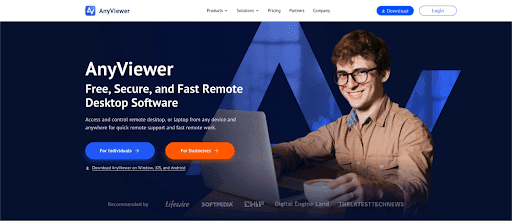
User-friendly, secure, and feature-rich, AnyViewer stands out from Remote Desktop by supporting multiple operating systems, which is perfect for those who need to control both Windows and non-Windows devices. It’s a great alternative for Windows 11 Home users, providing unrestricted remote access and control without the limitations imposed by the Home Edition. With AnyViewer, you have total control over your Windows 11 Home PC, regardless of whether you need to work remotely or view critical files.
Here's why AnyViewer is a great alternative to Remote Desktop Windows 11 Home:
You may easily gain remote access and remotely control computer from another computer from any location by using AnyViewer on Windows 11 Home. This is a detailed tutorial that explains how to utilize AnyViewer with Remote Desktop Windows 11 Home:
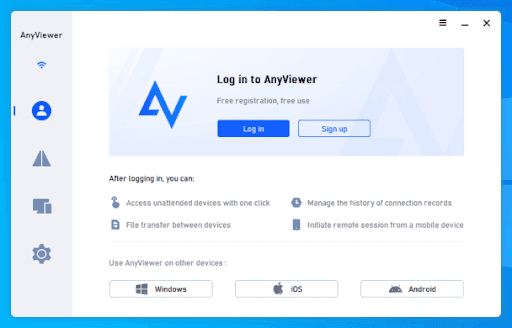
Step 1. Start by downloading and installing AnyViewer on both your Windows 11 Home computer and the local device you’ll be using for remote access. Just click "Log in" if you already have an account; if not, make one. Make sure both devices are signed into the same account.
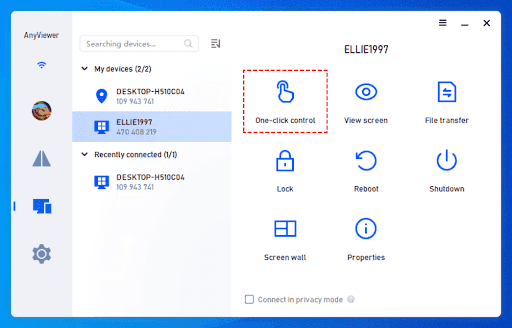
In conclusion, while Remote Desktop Windows 11 Home lacks the ability to host remote sessions, you can still use third-party tools like AnyViewer to achieve full remote access. AnyViewer is a robust alternative, allowing you to control and access your Windows 11 Home PC from anywhere. Its ease of use, security features, and cross-platform support make it an ideal solution for users needing remote desktop functionality on Windows 11 Home. AnyViewer is trusted by over 60 million users globally, supporting various industries such as finance, IT services, education, and government. With AnyViewer, you can overcome the limitations of the built-in system and enjoy seamless remote access to your home computer.