
How to Convert SoundCloud to MP3 for Free: The Ultimate Guide (2026)
- Authors

- Name
- Geeks Kai
- @KaiGeeks
If you searched for “soundcloud to mp3,” you likely want a simple, safe way to keep a track for offline listening. Here’s the deal: you can only download or convert when you have permission. This guide covers three fully compliant options—using the uploader-enabled Download button, creators downloading their own files, and SoundCloud Go/Go+ offline listening (which does not create an exportable MP3). You’ll get clear steps, quick checks, and fixes for common hiccups.
Is it legal to convert SoundCloud to MP3?
Short answer: it depends on permissions.
- Allowed for listeners: When the uploader has explicitly enabled downloads for a track or playlist item, fans can download the original file. SoundCloud explains that if downloads are enabled, “your fans can download your track’s original file to their computer” (see the Help Center’s explanation in Insights basics and the setup steps in Enabling Downloads For Your Track). For playlists, creators can manage permissions at upload/manage time as noted in Managing permissions when uploading a playlist.
- Allowed for creators: If you uploaded the track, you can download your original (and if applicable, mastered) file from your track’s edit page; see the official note in Mastering FAQs.
- Offline listening that isn’t an MP3 export: With Go/Go+, you can save tracks and playlists to listen offline inside the app; this does not create a standalone MP3 file. Details are in Manage Offline Listening on SoundCloud Go and SoundCloud Go+ tracks. For quality options, see High Quality streaming.
Not allowed: Using third‑party “downloaders” to rip streams or bypass permissions. SoundCloud’s developer API Terms of Use prohibit apps that enable stream ripping or unpermitted offline downloads. Stick to official features and explicit permissions.
Tip, with permission: If the uploader allows downloads (or you are the rights holder), you may use tools like GeeksKai to simplify getting the available file—no signup and free—while respecting the uploader’s settings.
How to download a SoundCloud track (uploader-enabled Download)
Before you begin
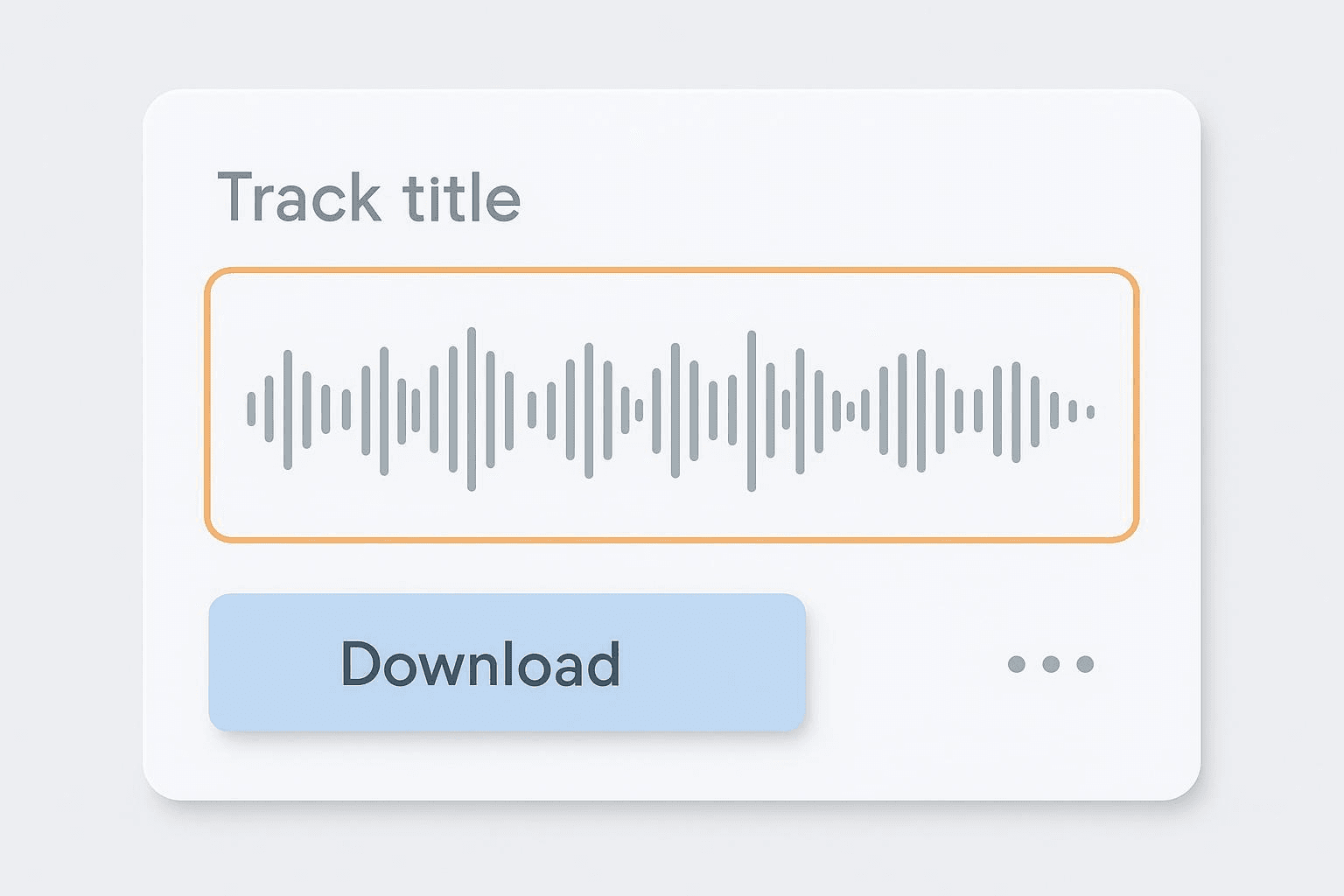
Sign in to your SoundCloud account (some enabled downloads may require it, as implied in related Help Center guidance). Use a modern web browser and a stable connection. The Download button typically appears below the waveform on the track page; sometimes it’s inside the three-dots More menu.
Step-by-step (desktop)
- Open the track on soundcloud.com.
- Look under the waveform for Download. If you don’t see it, open the three-dots More menu.
- Click Download. If prompted, sign in and retry.
- Choose where to save the file if your browser asks; otherwise, it will go to your default Downloads folder.
Quick checks
- Find the file in your Downloads folder. The format depends on what the uploader provided (often MP3, but not guaranteed). SoundCloud notes that when downloads are enabled, listeners get the original uploaded file (see Insights basics).
- Play it end-to-end to confirm there are no glitches.
- Right‑click > Properties (Windows) or Get Info (macOS) to view bitrate, duration, and basic tags. Don’t expect a specific bitrate; it varies by source.
Edge cases to know
- If a Download button is missing, the uploader likely didn’t enable it, or a track-level limit was reached (limits depend on uploader tier). See Enabling Downloads For Your Track.
- If a track is private, region‑blocked, or removed for copyright, it won’t be available. See SoundCloud’s copyright guidance: How do copyright strikes work and My track was taken down for copyright infringement.
How creators can download their own uploads
If you uploaded the track, you can download your original files directly from the track’s edit page.
Steps
- Sign in and open your track’s edit page.
- Locate the option to download original files (near Replace files). If you used SoundCloud Mastering, you can also download the mastered version — see Mastering FAQs.
- Save the file(s) to your computer.
Quick checks
- Confirm filenames and sizes (original vs mastered).
- Play through and confirm the length matches.
- If you’ll distribute the file elsewhere, keep title/artist metadata accurate and review licensing terms.
How to save tracks for offline listening with SoundCloud Go/Go+
This path is useful when a Download button isn’t available, but you still want offline listening within the SoundCloud app. It won’t produce an exportable MP3.
Steps (mobile)
- In the SoundCloud app, open Settings > Downloads.
- Enable offline saving. Optionally toggle automatic downloads for your Likes or library.
- Save tracks or playlists to your library. With Go+, you get catalog-wide access. See Manage Offline Listening on SoundCloud Go.
Quick checks
- Toggle airplane mode and confirm that saved items still play in the app.
- Reconnect periodically; offline stats can take up to 30 days to appear, indicating app‑bound caching (see Advanced SoundCloud Insights).
Playlists, quality, and metadata
Playlists
There’s no official “download entire playlist as MP3” export for listeners. Availability depends on each track’s permissions, and creators can toggle downloads in playlist permissions as described in Managing permissions when uploading a playlist. Inside the app, Go/Go+ supports saving playlists for offline playback, but that’s still app‑bound, not MP3 export.
Quality and format
When a listener download is enabled, the file is the original uploaded by the creator (format/bitrate vary). See Insights basics. Go/Go+ can use high‑quality streaming for offline playback inside the app; see High Quality streaming.
Metadata basics
If you care about tags, check Properties/Get Info after download. Fields like Title, Artist, and Artwork depend on what the uploader provided. If you’re the creator, tidy your tags before uploading so fans who legally download see accurate metadata.
Troubleshooting and FAQs
Why don’t I see a Download button?
- The uploader hasn’t enabled it, or the track hit a download limit based on the uploader’s tier. See Enabling Downloads For Your Track.
- Sign in and reload the page; some scenarios imply you need an account session (see a related implication in WordPress embed FAQs).
Can I convert a whole playlist to MP3 in one go?
- Not via any official listener feature. Each track’s permissions control availability. You can save playlists for offline listening with Go/Go+ inside the app, but that doesn’t export MP3s.
Is using a third‑party “soundcloud to mp3” site legal?
- If it bypasses permissions or rips streams, it likely violates SoundCloud policies (see API Terms of Use). Use official downloads or your own content only.
What bitrate will I get?
- Whatever the uploader originally provided. There’s no guaranteed fixed bitrate like 320 kbps across all tracks.
How do I check that my file downloaded correctly?
- Verify it appears in your Downloads folder, plays end‑to‑end, and shows sensible duration/bitrate in file properties. If it’s incomplete, re-download.
Does Go/Go+ give me an MP3 file I can move around?
- No. Go/Go+ stores items for offline playback within the SoundCloud app or approved partner DJ apps. There’s no MP3 export from Go/Go+ (see Manage Offline Listening on SoundCloud Go).
Safety note
Avoid shady downloaders or browser extensions that request broad permissions. Stick to official features or your own content.
Use SoundCloud responsibly, respect artists’ rights, and rely on permitted paths. When you do have permission, getting a clean “soundcloud to mp3” result is straightforward—and when you don’t, Go/Go+ keeps you listening offline inside the app without bending the rules.